OMAR SALEMA PERSONAL PORTFOLIO · 2026

YOUR SEAT IS WAITING

A closer look
at what connects.

A short cinematic welcome, then into my work across IT systems, connectivity, and technical support.

A PREVIEW FROM INSIDE THE PORTFOLIO 01 / 01
CHOOSE YOUR SEAT REQUIRED Available Occupied Held Selected
Select one chair to reserve your ticket.
Pick an available seat to receive your entry ticket.
INTRO SOUNDTRACKIdea 22 · Gibran Alcocer

Your ticket starts the soundtrack as you enter.

Soundtrack starts when you enter
Open in SoundCloud ↗
Choose a seat; hold lasts 7 minutes

IT & SYSTEMS SPECIALIST · EGYPT

PAGE OPENS ON THIS BROWSER0
LONGEST STAY ON THIS BROWSER0s
LOCAL COUNTS · THIS BROWSER ONLY

IT & systems
that work together.

I connect and support the systems people rely on—from home internet and networks to low current installations, DICOM workflows, and IT troubleshooting.

IT systems, connectivity & technical supportAl Mahalla, Egypt
Portrait of Omar Salem
IT & SYSTEMS
BUILT ON HANDS-ON EXPERIENCE
OMAR SALEM · 01
IT & SYSTEMS, BUILT ON HANDS-ON EXPERIENCE.SCROLL TO EXPLORE  ↓
01 / ABOUT

Reliable systems start with the details.

IT & Systems Specialist with hands-on experience in home internet installation and fault resolution, networking, low current systems, PrintSCP / DICOM workflows, and technical support. I focus on reliable connections, clear troubleshooting, and practical service.

2+YEARS WITH
PRINTSCP / DICOM
02 / EXPERIENCE

Hands-on work.
Real-world systems.

Field experience across connectivity, low current installations, maintenance, customer service, and technical support.

APR 2023 — PRESENTAL MAHALLA, EGYPT

Low Current Technician

TechnoMedia

  • Audited installed low current systems for performance and safety, recommending practical improvements.
  • Maintained and troubleshot equipment to improve reliability and reduce disruption on site.
  • Integrated systems with existing infrastructure and provided timely technical support to clients.
Site AuditsMaintenanceIntegrationClient Support
Original diagram · illustrative systems layout
FULL-TIME
ABOUT 2 YEARSIMAGING WORKFLOW

PrintSCP / DICOM Server

Radiology device-to-printer connectivity

  • Connects radiology equipment to printers through PrintSCP / DICOM server workflows.
DICOMPrintSCPDevice Connectivity
Original diagram · illustrative imaging workflow
SPECIALTY
DEC 2022 — FEB 2023AL MAHALLA, EGYPT

Sales & Maintenance Agent

Zidan Store for Electrical Supplies and Accessories

  • Resolved customer inquiries and complaints with clear, professional service.
  • Explained product information, policies, and procedures to clients.
Customer SupportMaintenance
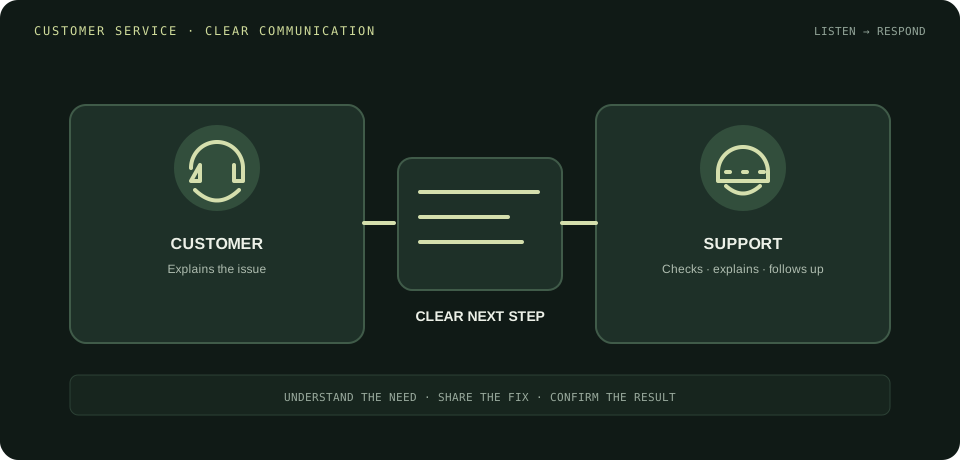
Original diagram · illustrative support flow
CUSTOMER SERVICE
APR 2019 — NOV 2022AL MAHALLA, EGYPT

Fittings & Maintenance Technician

Unis.net

  • Repaired production equipment and carried out preventive maintenance to minimize downtime.
  • Diagnosed breakdowns, replaced defective components, and restored equipment functionality.
Equipment RepairPreventive Maintenance
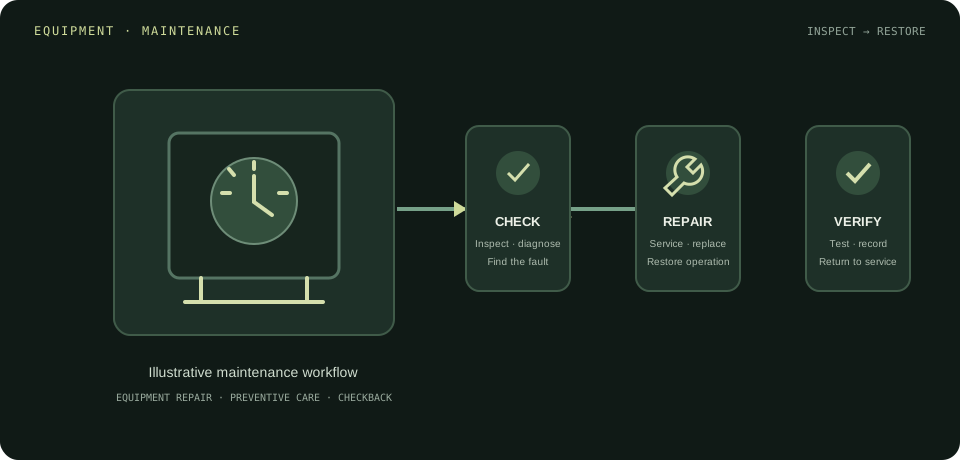
Original diagram · illustrative maintenance flow
MAINTENANCE
03 / FEATURED WORKFLOWS

Automation, in action.

Four real n8n workflow screenshots, with a clear node-by-node walkthrough for each.

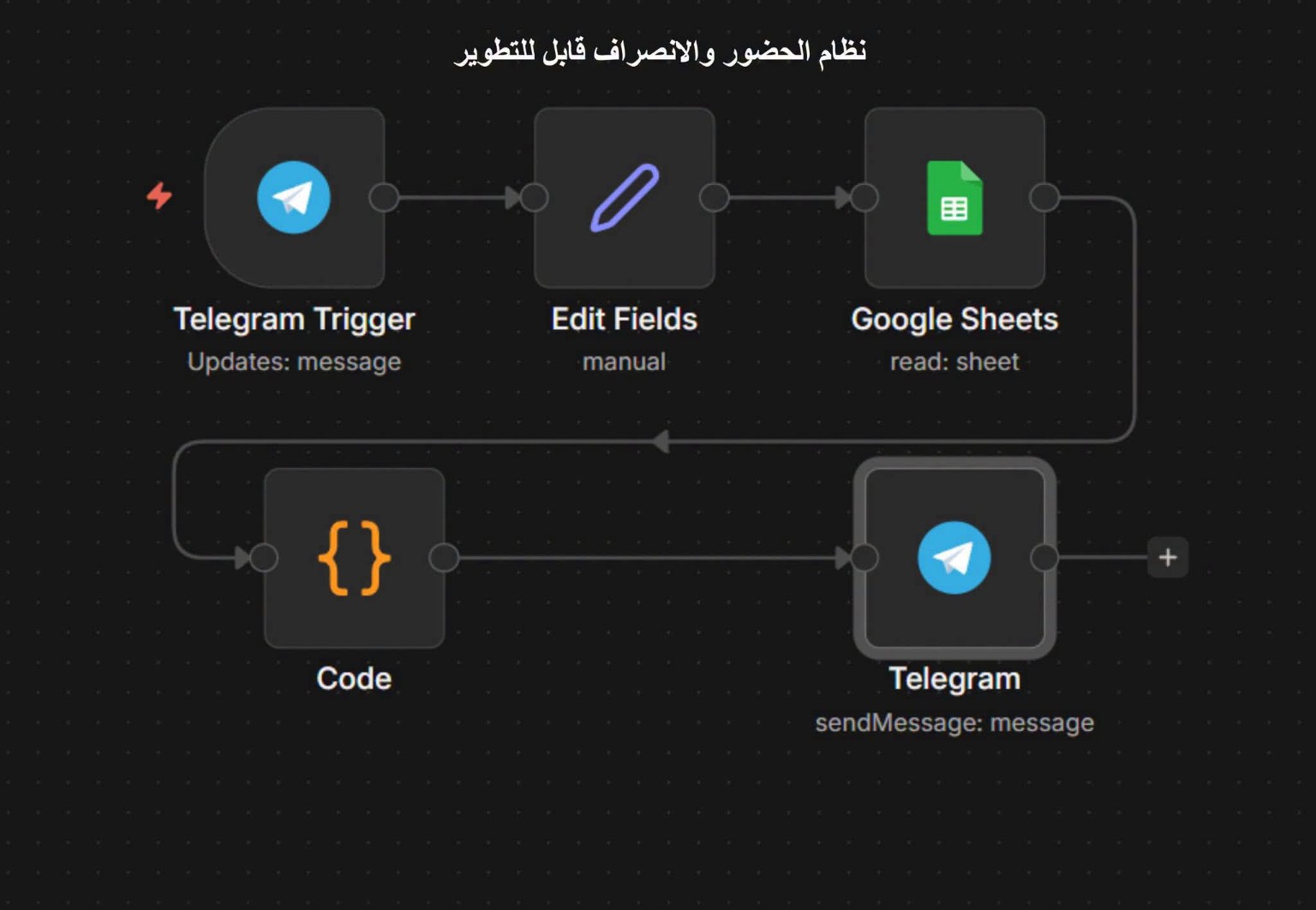
n8n workflow with Telegram trigger, Google Sheets, code, and Telegram message
01 · MESSAGING + SHEETS

Attendance & leave flow

Telegram message → field mapping → Google Sheets → code → Telegram response.

Open node-by-node explanation
How this flow works
  1. Telegram Trigger — starts when the bot receives a message or update.
  2. Edit Fields — maps the incoming message into fields needed by later nodes.
  3. Google Sheets · Read sheet — reads reference rows from the connected spreadsheet.
  4. Code — applies custom checks or formatting to the data; exact rules are not visible in the screenshot.
  5. Telegram · Send message — sends the prepared response back through the bot.
View full screenshot ↗ · n8n guide ↗
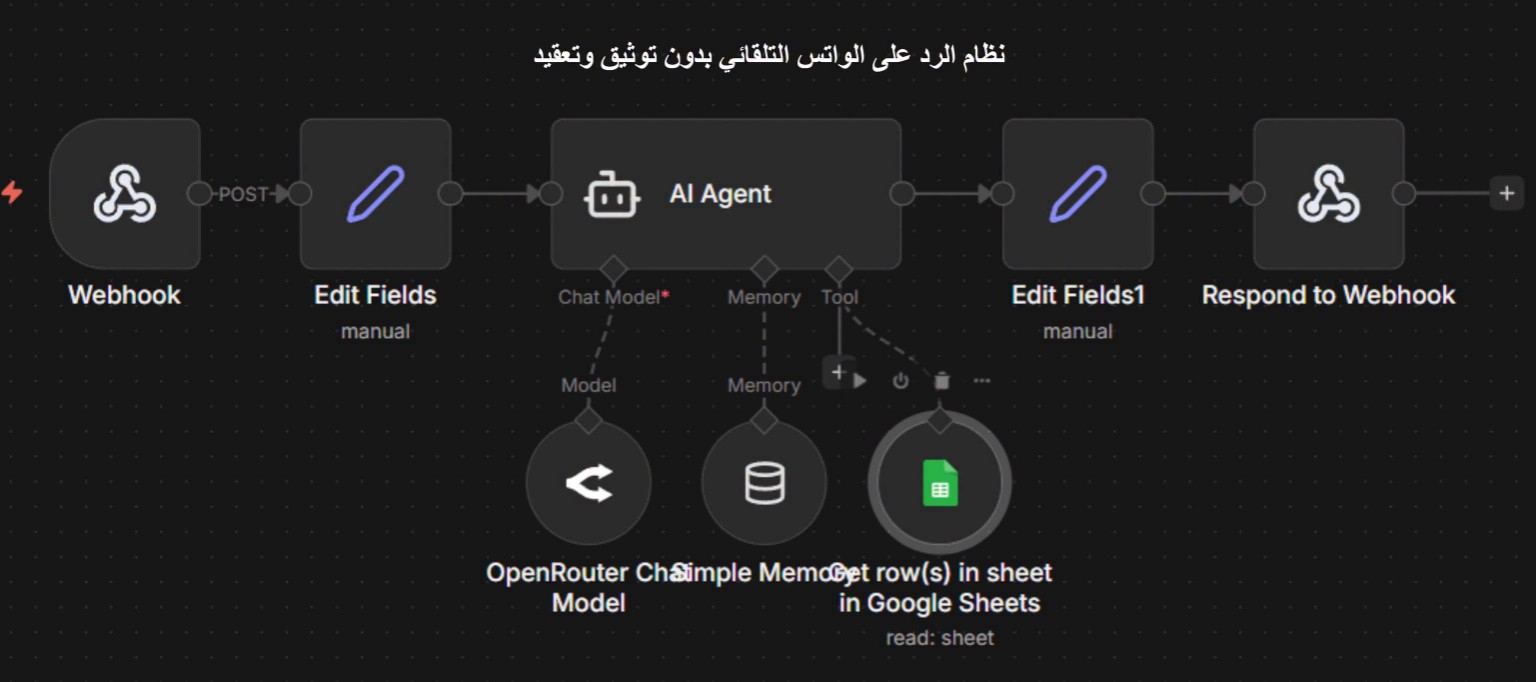
n8n webhook AI agent workflow with model, memory, and Google Sheets
02 · WEBHOOK + AI

AI-assisted auto reply

Webhook → AI Agent with model, memory, and Sheets tool → formatted webhook response.

Open node-by-node explanation
How this flow works
  1. Webhook — receives an HTTP request from another app or form.
  2. Edit Fields — selects and renames input fields before they reach the agent.
  3. AI Agent — prepares an answer using the connected chat model and available tools.
  4. OpenRouter Chat Model — provides the language model connected to the agent.
  5. Simple Memory — supplies the memory component shown; retention settings are not visible.
  6. Google Sheets · Get row(s) — lets the agent look up spreadsheet rows through a tool connection.
  7. Edit Fields1 — formats the response fields.
  8. Respond to Webhook — returns the answer to the calling app.
View full screenshot ↗ · n8n guide ↗
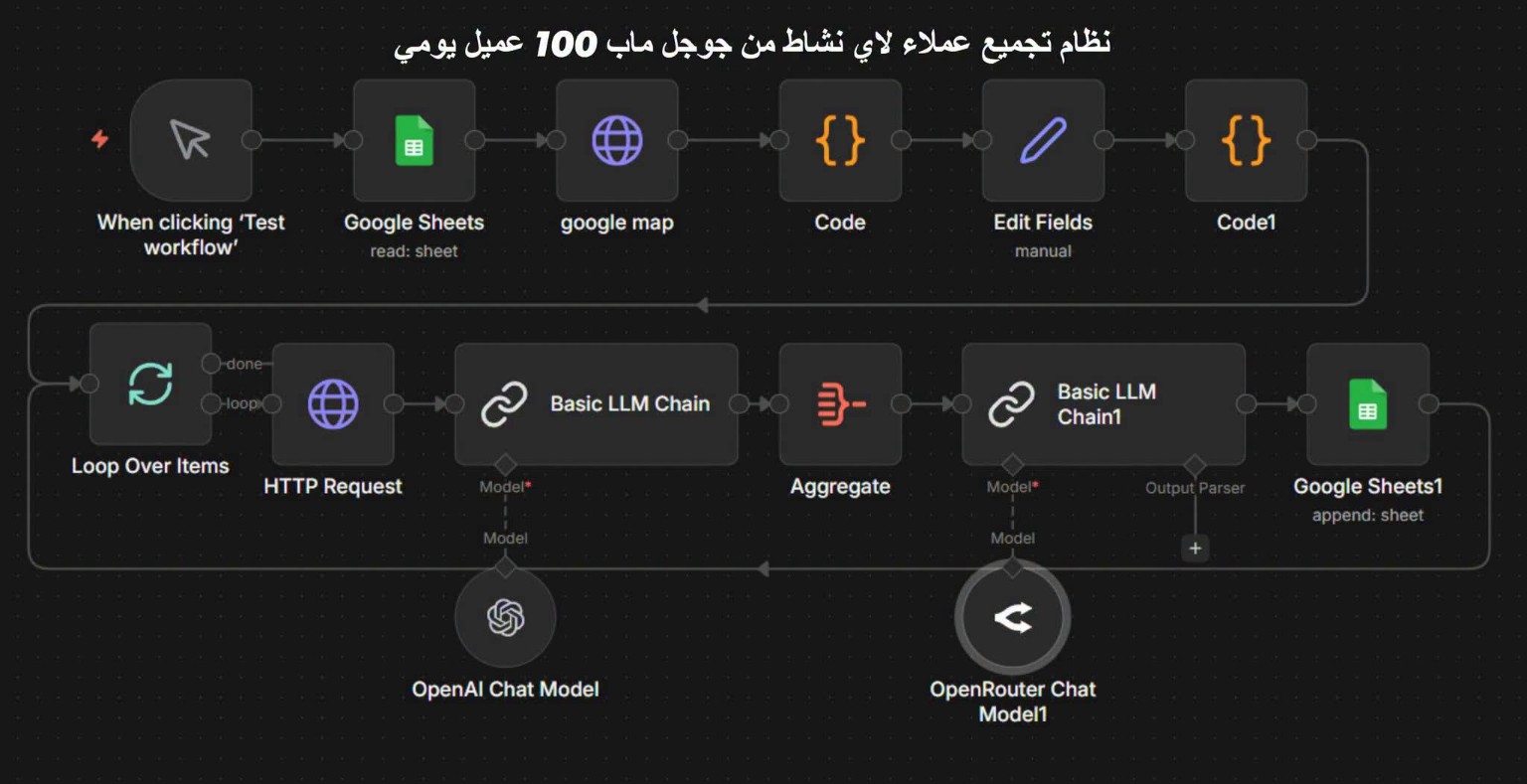
n8n lead research workflow using Google Maps, looping, language models, and Google Sheets
03 · RESEARCH + ENRICHMENT

Maps lead research

Google Sheets + Maps → loop and HTTP requests → language models → results in Sheets.

Open node-by-node explanation
How this flow works
  1. Manual trigger — starts a test run when “Test workflow” is selected.
  2. Google Sheets · Read sheet — loads the rows used as the input list.
  3. Google Maps step — labeled “google map”; the exact operation and API are not legible.
  4. Code → Edit Fields → Code1 — transforms and maps collected values for the loop; exact rules depend on hidden workflow settings.
  5. Loop Over Items — processes the input list one item at a time.
  6. HTTP Request — retrieves data for the current item from the configured endpoint.
  7. Basic LLM Chain · OpenAI Chat Model — processes retrieved text with the connected model.
  8. Aggregate — gathers per-item outputs for the next step.
  9. Basic LLM Chain · OpenRouter Chat Model — makes a second model pass on the gathered results.
  10. Google Sheets1 · Append sheet — writes the results to a spreadsheet.
View full screenshot ↗ · n8n guide ↗
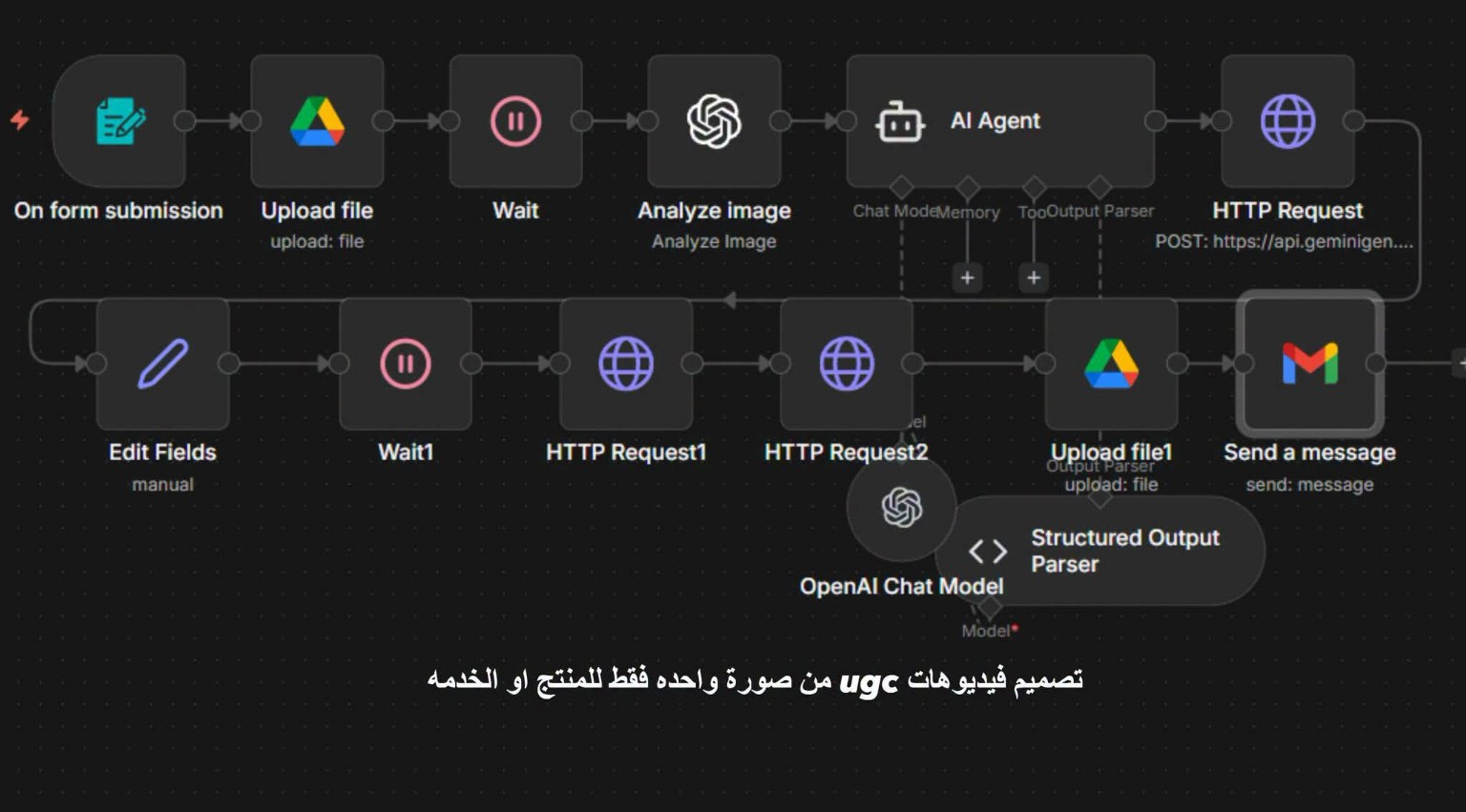
n8n UGC content workflow from image upload to analysis and delivery
04 · MEDIA + AI

Image-to-content flow

Form upload → image analysis → generation API request → Drive upload → Gmail message.

Open node-by-node explanation
How this flow works
  1. On form submission — starts a run when the form is submitted.
  2. Upload file — stores the submitted image in Google Drive.
  3. Wait — pauses for the configured time; duration is not shown.
  4. Analyze image — sends the uploaded product or service image for image analysis.
  5. AI Agent + OpenAI Chat Model + Structured Output Parser — prepares structured content from the analysis; exact prompt and fields are not visible.
  6. HTTP Request — sends a POST request to the configured media-generation API; the endpoint is only partly visible.
  7. Edit Fields + Wait1 — maps follow-up values and pauses before checking for a result.
  8. HTTP Request1 + HTTP Request2 — make follow-up API calls; exact roles depend on hidden URL and settings.
  9. Upload file1 — saves the returned file in Google Drive.
  10. Gmail · Send a message — emails the resulting asset or its link.
View full screenshot ↗ · n8n guide ↗

These workflow screenshots were supplied by Omar. Each walkthrough explains the visible nodes; credentials, full configuration, deployment, and live results are not shown or verified.

04 / AREAS OF EXPERTISE

What I work with.

Four clear areas. Open a card for the quick context, then explore the illustrated lab when you want more detail.

Original diagram of a small routed network lab with a router, switches, and client devices
NETWORKING · WINDOWS SERVER

Networks & directory services

Networking fundamentals, device connectivity, and Windows Server / Active Directory training in progress.

NetworkingWindows Server · learningActive Directory · learning
Quick overview & official sources

A network lab helps explain how devices, switches, routers, and IP addressing work together. Active Directory Domain Services organizes identities and computers in a Windows domain.

Microsoft · AD DS overview ↗
Open the illustrative network lab ↗
01
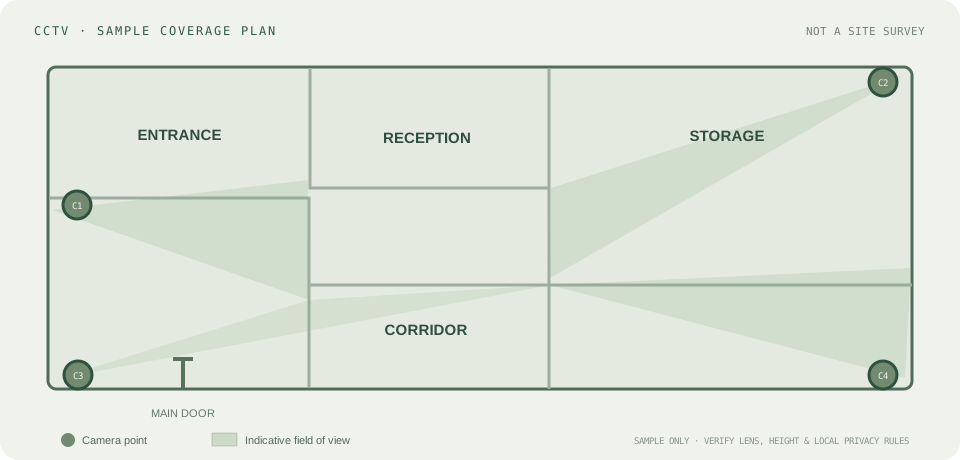
Original illustrative CCTV camera coverage plan for a small building
LOW CURRENT · SECURITY

CCTV & low current systems

Camera installation and coverage planning, access control, intrusion detection, and connected site systems.

CCTV / IP camerasAccess controlSystem integration
Quick overview & official source

ONVIF Profile T describes interoperability features for IP video systems. Camera coverage still depends on the site, camera placement, lighting, and the level of detail needed. The diagram is a learning example, not a customer site plan.

ONVIF · Profile T ↗
Open the illustrative camera plan ↗
02
Original diagram showing a radiology device, PrintSCP DICOM server, and printer
ABOUT 2 YEARS · IMAGING WORKFLOW

PrintSCP / DICOM connectivity

Connecting radiology equipment to printers through PrintSCP / DICOM server workflows.

DICOMPrintSCPDevice to printer
Quick overview & official source

DICOM defines how medical imaging systems exchange information. A configured print workflow connects compatible imaging equipment, a print service, and a printer; the exact setup depends on the devices and site.

DICOM PS3.4 · Print Management ↗
Open the illustrative DICOM workflow ↗
03
Original diagram of an IT support troubleshooting path from report to resolution
IT SUPPORT · CONNECTIVITY · AUTOMATION

IT support & workflow automation

Installing home internet, tracing connection faults, troubleshooting equipment, and building workflow ideas with n8n.

Internet troubleshootingCustomer supportn8n
Quick overview & official source

A useful support flow records the symptom, checks power and links, isolates the affected device or network segment, then verifies service after the fix. n8n connects apps through triggers and workflow nodes.

n8n · workflow docs ↗
Explore the featured n8n workflows ↗
04

The diagrams are original illustrative examples. Open a card to learn the basics; use the lab section below for a longer walkthrough. Training status is shown where a skill is still in progress.

05 / ILLUSTRATIVE LABS

See how the pieces connect.

Visual walkthroughs that show what each system does and how its parts connect.

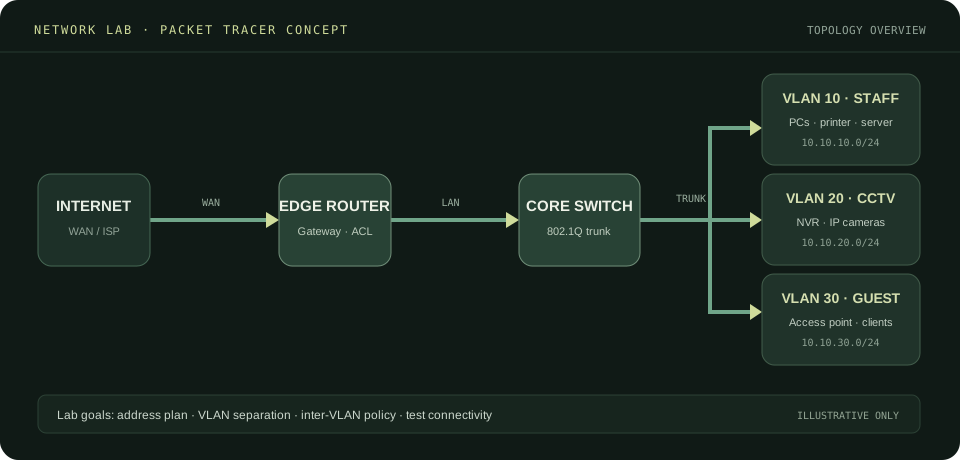
Packet Tracer-style topology linking a router, switch, staff, camera, and guest network segments
NETWORKING · SIMULATION CONCEPT

Small office network lab

Router → managed switch → separate staff, camera, and guest segments.

Open project walkthrough
How to read this lab
  1. Start with the WAN edge. The ISP handoff reaches the edge router, which acts as the site's gateway.
  2. Connect the LAN. A trunk carries the configured VLANs between the router and core switch.
  3. Separate device groups. Staff, CCTV, and guest Wi-Fi have example subnets so access can be controlled by purpose.
  4. Apply and verify policy. Configure addressing and only the required routes or rules; then check each segment's intended reachability.

Learning diagram inspired by a Packet Tracer lab topology. It is an illustrative portfolio example, not a Packet Tracer screenshot or a verified configuration.

Cisco Packet Tracer course ↗Cisco networking basics ↗
Illustrative floor plan with four camera positions and overlapping coverage areas
CCTV · ILLUSTRATIVE DESIGN

Camera coverage map

A sample floor plan showing camera positions, viewing direction, and coverage overlap.

Open design walkthrough
How to plan the coverage
  1. Mark the space. Start from a current floor plan and identify entrances, circulation routes, and important areas.
  2. Choose camera points. Place cameras to cover the required views while accounting for mounting height, lens, lighting, and obstructions.
  3. Review overlap and blind spots. Treat the wedges as approximate fields of view; check the actual scene and image detail before installation.
  4. Document the system. Record camera labels, network route, recorder/VMS, storage, and privacy requirements.

Concept floor plan only. It is not a survey of Omar's site or a final camera specification.

AXIS Site Designer guide ↗ONVIF Profile T ↗
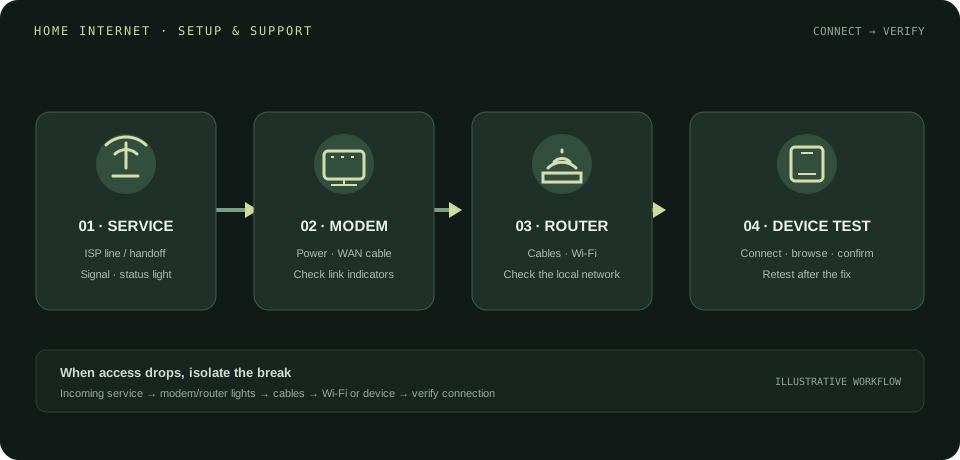
Home internet workflow from the incoming line to a connected device, with fault checks
HOME INTERNET · SETUP & SUPPORT

Connect and restore a home connection

Follow the connection from the incoming service through the router to a device, then isolate faults when access drops.

Open home internet walkthrough
How the connection is checked
  1. Check the incoming service. Confirm the ISP line or handoff is connected and look for service or link indicators on the modem/ONT.
  2. Check the router and cables. Verify power, WAN/LAN connections, and status lights; reseat loose connections when needed.
  3. Check Wi-Fi and devices. Test a wired connection or another device to distinguish a Wi-Fi issue from a wider connection fault.
  4. Isolate and retest. Trace the fault along the connection, apply the appropriate fix, then confirm internet access on the customer's device.

Illustrative troubleshooting path. ISP equipment, connection types, and the right repair steps vary by home and service provider.

Microsoft Wi-Fi troubleshooting guide ↗Wi-Fi and your home layout ↗
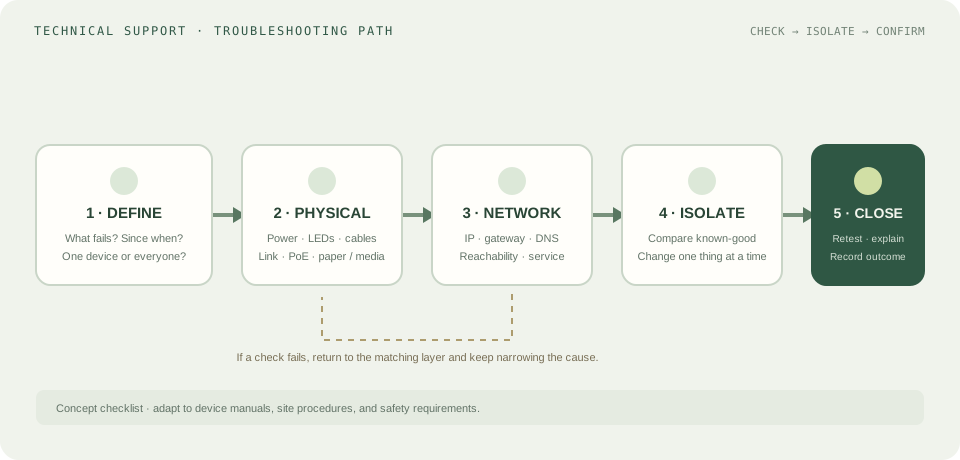
Technical support troubleshooting path through symptom, physical checks, network, isolation, and verification
TECHNICAL SUPPORT · DIAGNOSIS

Trace a fault by layer

Move from the reported symptom through physical and network checks to a confirmed fix.

Open troubleshooting walkthrough
A practical diagnostic sequence
  1. Define the issue. Ask what changed, when it began, and whether one user or several devices are affected.
  2. Check the physical layer. Confirm power, indicators, cable connections, PoE, and device-specific consumables.
  3. Check addressing and reachability. Review IP, gateway, DNS, link state, and whether the relevant service can be reached.
  4. Isolate one cause at a time. Compare against a known-good device or path, then change only one variable and observe.
  5. Verify and communicate. Repeat the user's original task, explain the outcome, and record any follow-up.

General troubleshooting example; the correct checks depend on the device, issue, and local procedures.

Microsoft printer troubleshooting ↗
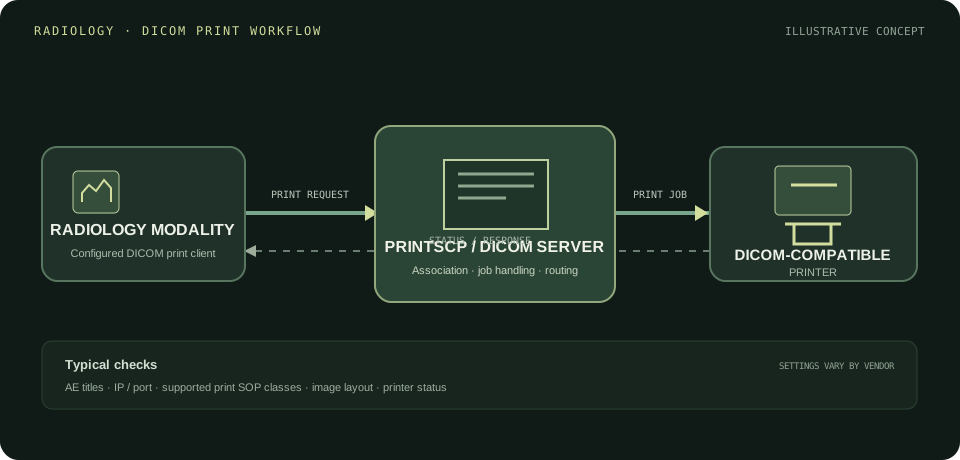
Radiology modality connected through a PrintSCP DICOM server to a compatible printer with status returned
DICOM · PRINT CONNECTIVITY

Radiology device to printer

See the imaging device, PrintSCP/DICOM server, printer, and return status in one workflow.

Open DICOM workflow
How the print path works
  1. Match the endpoints. Confirm the modality, server, and printer support compatible DICOM print services and agree on AE titles, IP addresses, and ports.
  2. Establish the connection. The configured client requests a DICOM association with the print service; connection and negotiation must succeed.
  3. Send the print job. The server handles the print request and passes the configured job to the compatible printer.
  4. Check the result. Review the response and printer status, then verify the expected output with the site's approved test procedure.

Simplified concept diagram. Exact roles, settings, and supported services vary by modality, PrintSCP software, and printer.

DICOM PS3.4 · service classes ↗DICOM overview ↗
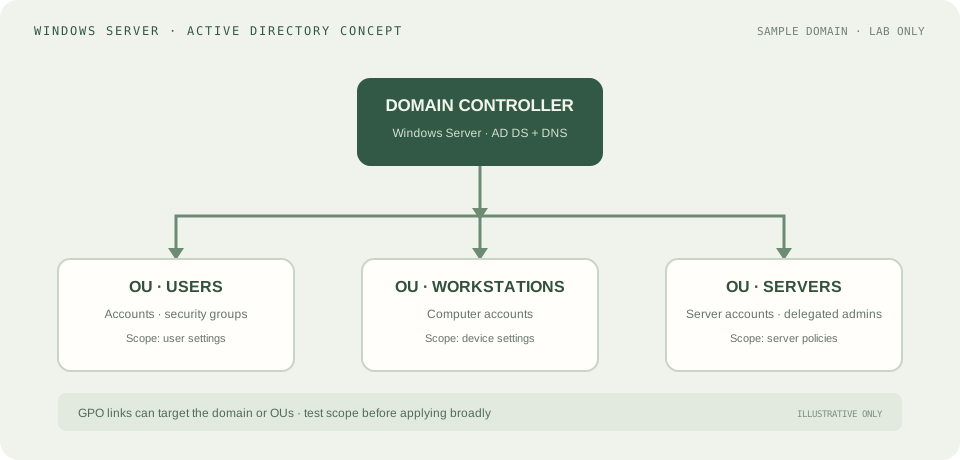
Windows Server domain controller connected to user, workstation, and server organizational units
WINDOWS SERVER · ACTIVE DIRECTORY

Accounts, OUs, and policy

A sample directory structure showing where users and computers live and how policy scope is organized.

Open directory walkthrough
How the sample layout works
  1. Locate the domain controller. Domain-joined clients use DNS to find directory services for sign-in and resource lookup.
  2. Organize directory objects. Separate user, workstation, and server objects into OUs that fit management and delegation needs.
  3. Use groups for access. Assign permissions through suitable security groups and grant only the access required.
  4. Scope Group Policy. Link and test GPOs at the appropriate site, domain, or OU before wider application.

Sample lab structure, not a deployed domain. The right OU and GPO design depends on the real organization's requirements.

AD DS overview ↗DNS and AD DS ↗Group Policy overview ↗

These six diagrams are original learning examples made for the portfolio. They explain the skills without claiming to be customer installations, verified network configurations, or screenshots from Packet Tracer. Open each card for the step-by-step walkthrough and its official references. Featured n8n workflows appear above.

06 / LEARNING

Always building capability.

Courses, training, and certificates with links to the relevant details.

JAN 2026 — OCT 2026

MCSA Windows Server & Active Directory

Training in progress · expected Oct 2026

JUL 2024 — OCT 2024

CCTV Operator Training, Installation, and Technician Course

Online course

MAR 2024 — JUN 2024

Low Current Technicalities

Online course

FEB 2024 — MAY 2024

CompTIA A+

Online course

DEC 2023 — FEB 2024

Cisco CCNA

Online course

SEP 2023 — DEC 2023

Customer Support Qualification

LeBaih delivery company

MAR 2022 — SEP 2022

Electronics Maintenance Basics Diploma

Professional Academy · Tanta

OCT 2019 — JUL 2021

Highschool Diploma

Kafr Al Abaydah Agricultural Highschool

07 / CONTACT

Let’s make things
work better.

For technical roles, service opportunities, or a conversation about connected systems.